
Relisting
Auto-relist: automatic relisting
The repost agent works for you while Chrome is open. It bumps your listings, relists them when they sell and lowers their price on its own. It only touches the items you hand over to it, and each item can get its own treatment.
Three words to know
The whole setup comes down to three ideas.
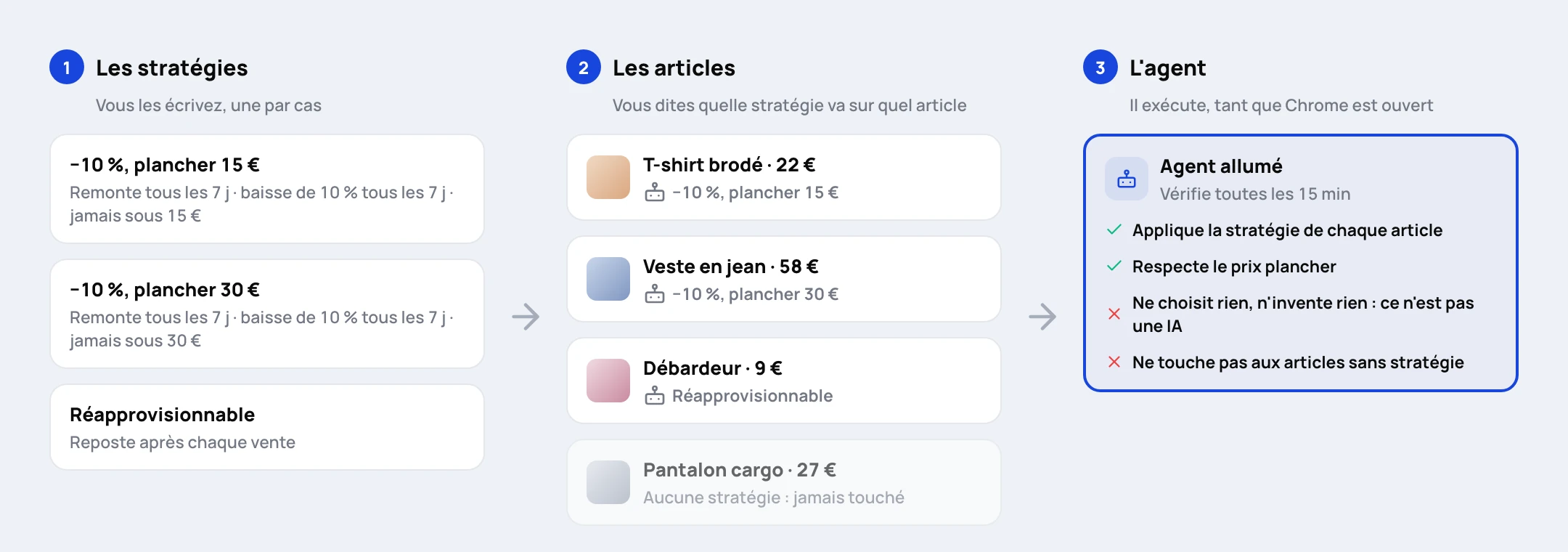
- The agent: the robot that carries things out. It is on or off, nothing more. It is not an AI: it chooses nothing and invents no strategy, it applies to the letter the one you gave each item.
- A strategy: a named recipe, for example "relist every 7 days, lower by 10%, never below €15". You create as many as you have different cases.
- A watched item: an item you have given a strategy to. An item that is not watched is never touched.
In other words: you write recipes, then you say which recipe goes on which item. Two items can follow two different recipes.
Step 1: switch the agent on
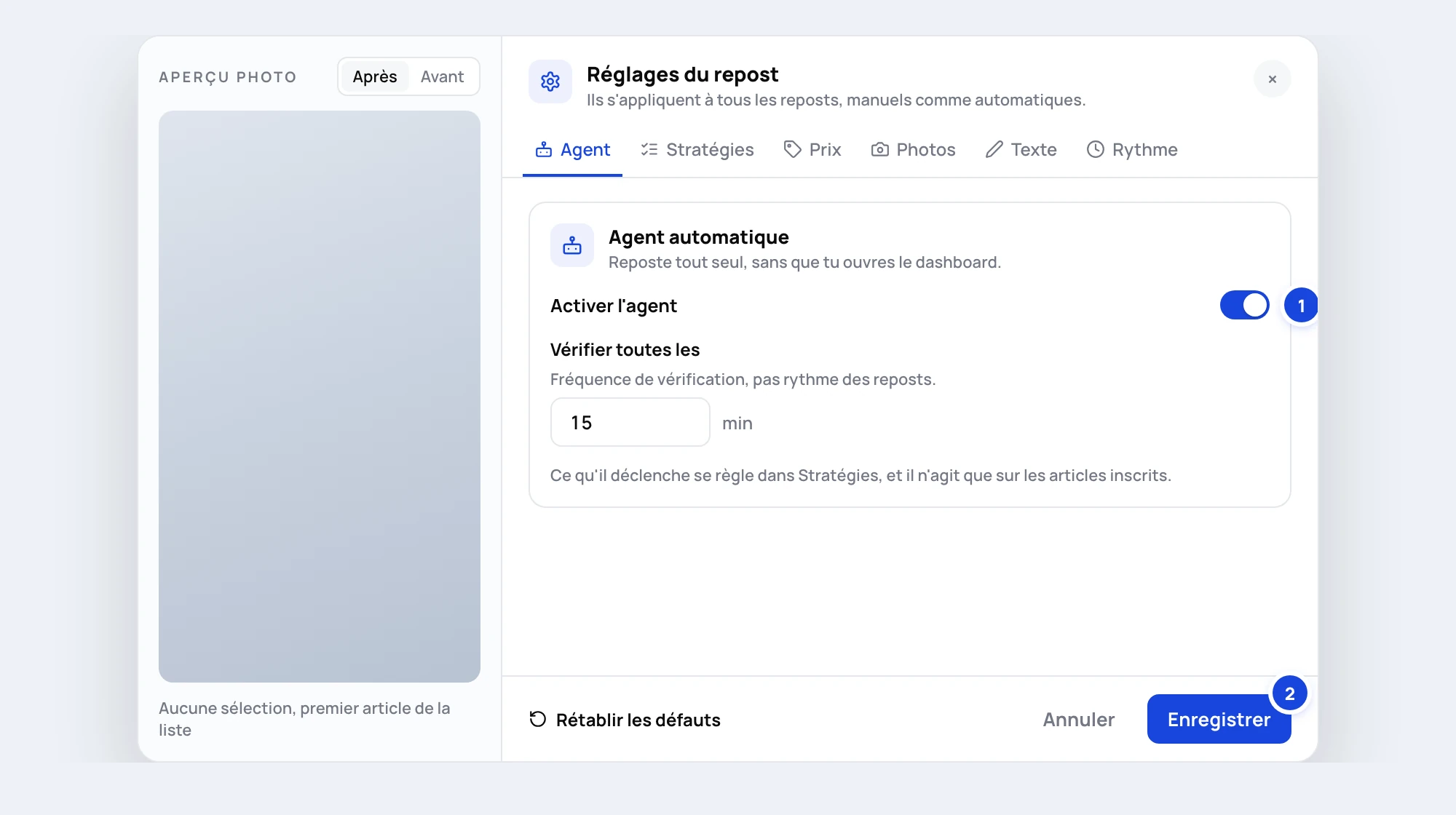
Open the Wardrobe in the dashboard, then the gear icon Settings. The "Repost settings" window opens on the Agent tab.
- Tick Enable the agent.
- Leave Check every at 15 min. This is how often the agent looks for something to do, not how often it relists.
- Click Save. Nothing is saved until you click.
Switching the agent on does nothing yet: no item has been handed over.
Step 2: set up your strategies
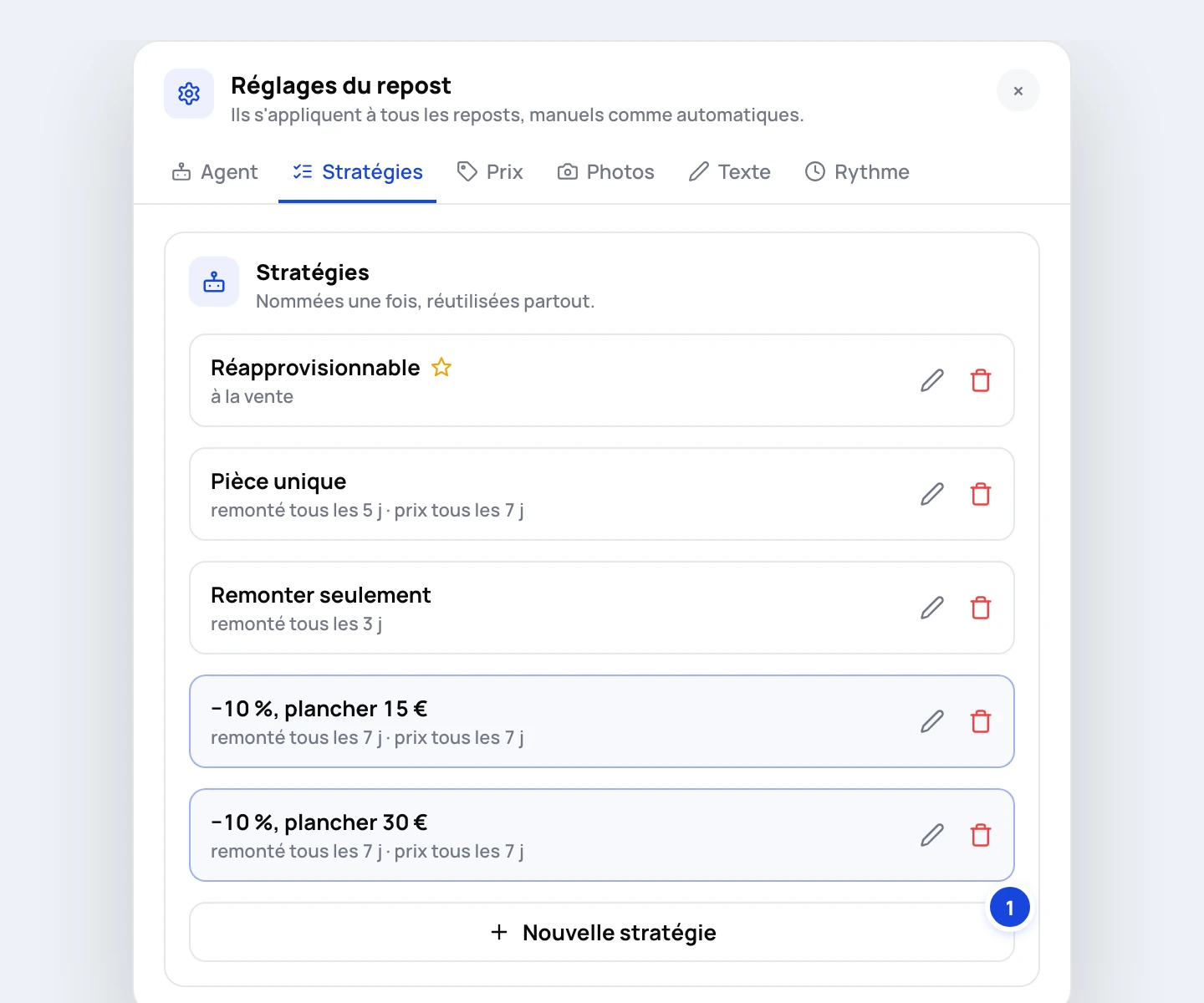
Still in the settings, open the Strategies tab. The first time you open it, three strategies are already there:
| Strategy | What it does |
|---|---|
| Restockable | Relists the item after every sale. For things you sell in several copies. |
| One-off piece | Bumps the listing every 5 days and lowers the price by 5% every 7 days, never below €3. |
| Bump only | Bumps the listing every 3 days, without touching the price. |
You can edit them, delete them or create others with New strategy (20 at most).
What a strategy contains
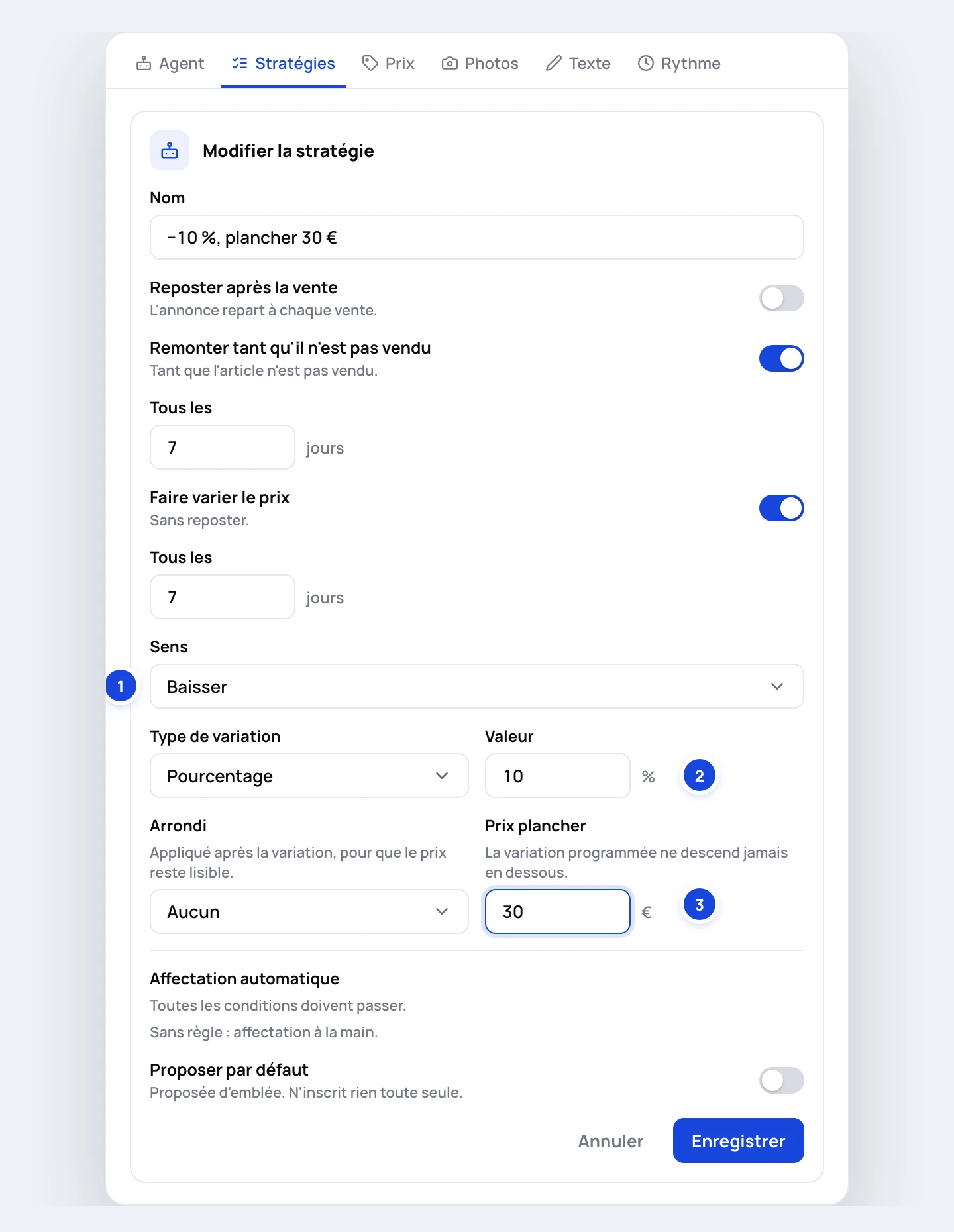
A strategy combines one or more of these three triggers. At least one is required.
- Repost once it sells: the listing goes back up after every sale.
- Bump it until it sells, Every N days: the item is relisted at regular intervals to come back to the top of the results.
- Change the price, Every N days: the price of the live listing changes, without relisting.
When you tick Change the price, five settings appear:
| Setting | Role |
|---|---|
| Direction | Keep the same price, Lower it or Raise it |
| Amount type | Fixed amount (in €) or Percentage |
| Amount | The amount or the percentage, for example 10 |
| Rounding | None, Whole euros (.00), Ends in .99 or Ends in .50 |
| Floor price | The price never goes below it |
Two options save time:
- Offer by default: this strategy will be preselected when you hand over items. It enrols nothing on its own.
- Automatic assignment: rules that hand items to this strategy without you picking them (see below). Optional.
Each strategy is saved with its own Save button.
How the price goes down, in practice
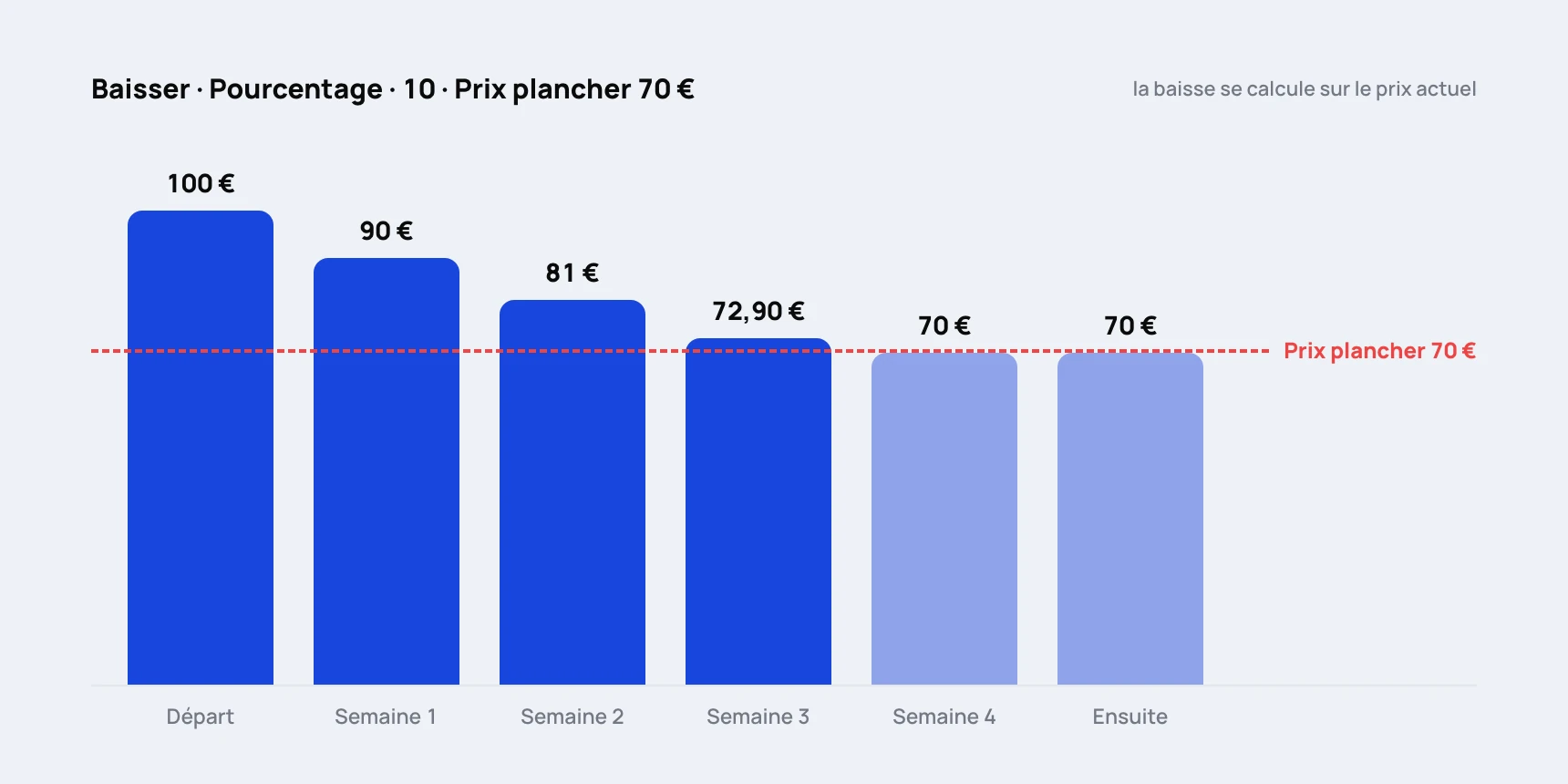
The drop is calculated on the current price, not on the starting price. With a 10% drop every 7 days and a €70 floor on a €100 item:
| Week | Price |
|---|---|
| Start | €100 |
| Week 1 | €90 |
| Week 2 | €81 |
| Week 3 | €72.90 |
| Week 4 | €70 (the maths gives €65.61, the floor stops it) |
| After that | €70, the agent leaves it alone |
Good to know:
- An item already below the floor goes back up to the floor at the next change. Set the floor below the current price.
- The Ends in .99 rounding can nudge a price up slightly (€27.30 becomes €27.99). Pick Whole euros for a clean drop.
- With a fixed amount, an €8 item and an €80 item lose the same sum. A percentage is almost always fairer.
Step 3: hand over your items
Close the settings and go back to the Items tab of the Wardrobe.
For several items at once:
- Tick the items you want. Shift+click selects a whole range.
- In the bar that appears at the bottom, click Set the agent on N items.
- The "What should the agent do with these N items?" window opens. Pick the strategy.
- Click Save.
For a single item: in its card menu, choose Let the agent watch it. Once watched, the same entry becomes Agent settings, to switch strategy.
Only live items can be handed over.
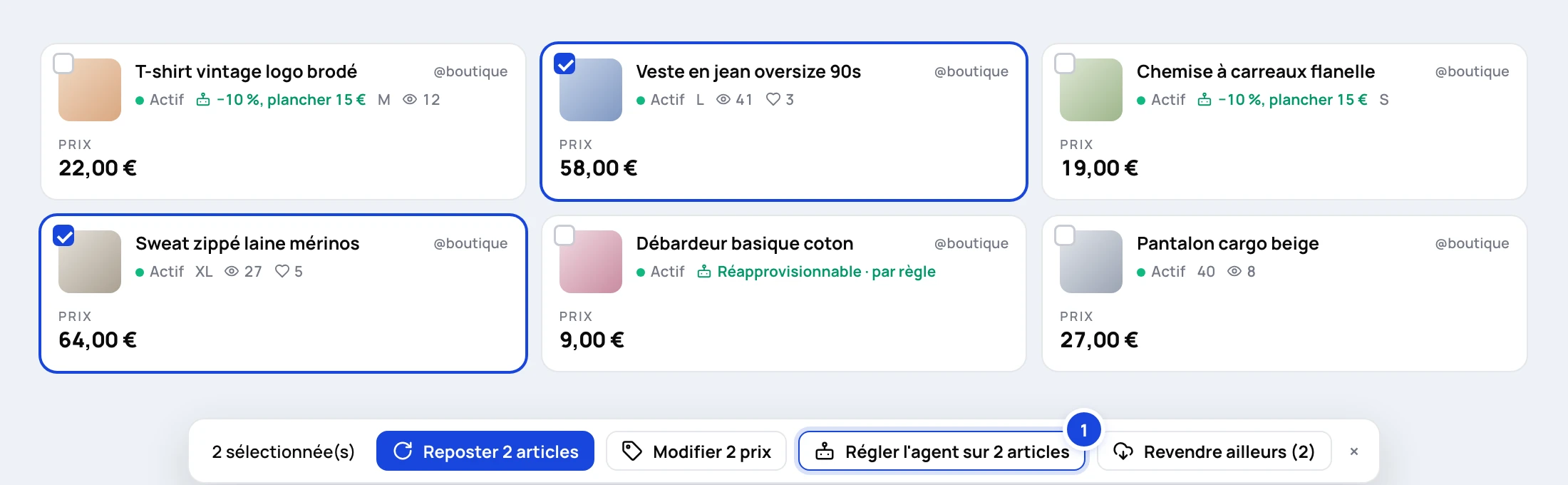

Reading the card labels
| Label | Meaning |
|---|---|
| A strategy name | The item follows this strategy |
| A strategy name + "by rule" | An automatic assignment rule handed it over |
| Watched + triggers | Custom settings (see below) |
| Excluded | The agent must never touch this item |
| Nothing | The item is not watched |
Worked example: a different treatment per item
This is the most common question: "I want to lower the price by 10% each time, without going below a given price, but not the same price for all my items".
The floor price belongs to the strategy. For different floors, create one strategy per floor:
- Create "−10%, floor €15": tick Bump it until it sells (for example every 7 days) and Change the price (Lower it, Percentage, 10, floor €15).
- Create "−10%, floor €30" with the same settings and a €30 floor. Then a third one if needed.
- In the Wardrobe, select the cheaper items, then Set the agent and the first strategy.
- Select the pricier items, then Set the agent and the second one.
The other items stay as they are. A strategy name that says what it does ("−10%, floor €30") avoids mistakes when you pick.
The two price settings: don't mix them up
There are two places to set a price, and they don't act at the same moment.
| Where | When it applies | On what |
|---|---|---|
| Strategy, Change the price | Every N days, without relisting | Items watched by that strategy |
| Price tab of the settings | At every repost, manual or automatic | Every repost, of every item |
The two add up. If the Price tab is set to Lower it, an item following "One-off piece" drops every 7 days through the strategy, then again at every repost. If you only want one drop, leave the Price tab on Keep the same price and set everything in your strategies.
Automatic assignment (optional)
A rule hands over matching items by itself. Example: "Price more than 50" and "Listed for more than 30 days" sends every expensive item that isn't moving to a price-drop strategy, including the ones you list later.
- Criteria: Brand, Status, Price, Listed for, Views, Favourites, Size, Colour, Category, Title, Account.
- All conditions must be true at once (12 at most).
- If two strategies have a rule matching the same item, the one with the highest Priority wins.
- A choice made by hand always beats a rule.
Without rules, a strategy only applies to the items you hand over yourself.
Custom settings
In the "What should the agent do…" window, Custom settings… lets you tick the three triggers without using a strategy. Careful: the intervals and the price change are then those of the default strategy, not values specific to the item. For a tailored floor price, use a strategy.
Removing or excluding an item
- Stop watching it (card menu) or Unwatch N items (selection bar): the agent stops looking after it.
- If an automatic assignment rule still covers the item, it becomes Excluded: the rule won't pick it up again.
Editing a strategy applies straight away to all its items. Deleting one loses nothing: the items it followed keep their current settings.
The other settings
They apply to every repost, manual or automatic:
- Price, Photos, Text: how the new listing differs from the old one. See Repost settings.
- Pace:
- Listing method: Humanised (recommended) or API.
- Delay between reposts.
- Daily limit: beyond it, reposts wait until the next day, they are not lost. Price changes don't count towards the limit.
- Keep the original listing: off by default, so the old listing is deleted after the repost.
Following what the agent does
- Reposts tab of the Wardrobe: every repost, running, queued, done or failed, with its source ("Agent", dashboard or extension). A failure can be retried from here.
- Agents page, Auto Repost card: the agent's state (Running, Paused, Offline, Off) and its log, price changes included.
If a price changed and you don't know why, that log is where to look.
Limits to know
- Chrome must be open with a Vinted tab. The extension does the work. Computer off, agent stopped: it catches up on what is overdue when you come back.
- Keep the extension up to date. If the message "Until the extension updates, the default strategy's pace is the one that applies" shows up, your strategies only get their own pace after the update.
- Sales are detected on your recent orders. An old sale won't trigger a repost.
- Each repost uses your plan's monthly quota. Price changes don't.
Getting started
- Switch the agent on.
- Hand five to ten items to a single strategy.
- Let it run for a week and read the log.
- Then move on to the whole wardrobe, with as many strategies as cases.
A repost every 5 to 7 days is a good starting point. Every 3 days on a big wardrobe uses up the daily limit fast and the pattern becomes easy to spot.